

Office Booking Instructions
Booking Office Space in TeamUp
Office space is shrinking from seven rooms to four, so the four remaining offices need a system everyone follows. TeamUp gives you a shared calendar to claim a space the moment you know you need one. Booking takes under a minute once you've done it a couple times.
Office Booking Rules
- Reserve a room only when you actually have a client scheduled there.
- Leave "Repeating" off. Book each session individually.
- Book no more than two weeks ahead.
- Check weekly that what's booked still matches your actual client schedule.
- Give up the room if the gap between appointments runs longer than an hour.
- If a room is open and unbooked, you can stay in it between same-day appointments, though you still can't reserve it ahead of time.
- A booking always wins. Anyone can use an open room, but has to clear out the moment the person who booked it arrives.
Schedule a time once a week to check TeamUp
Align your in-person appointments with the available office space.
Open TeamUp.com and log in
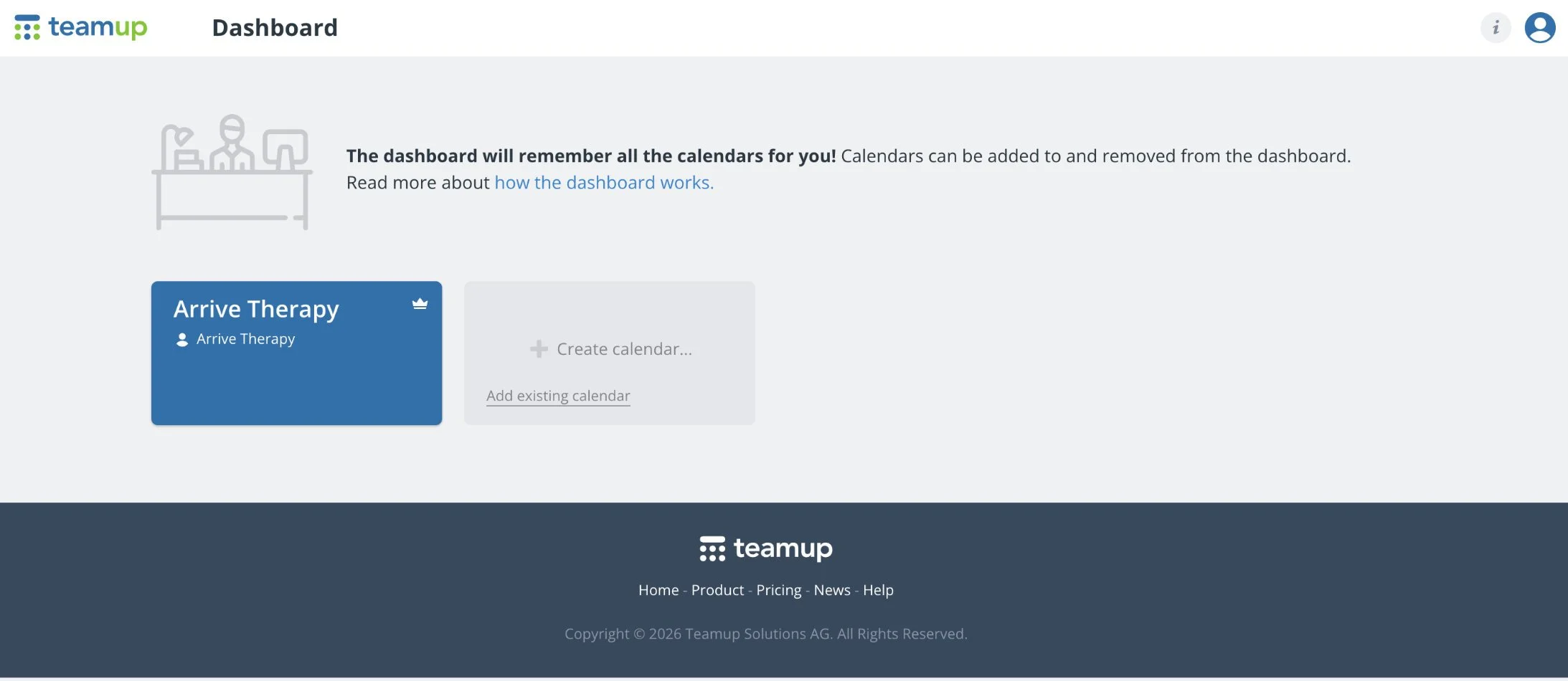
Use the account credentials Adair gave you. You'll land on your dashboard. Click on the calendar called "Arrive Therapy" to open it.
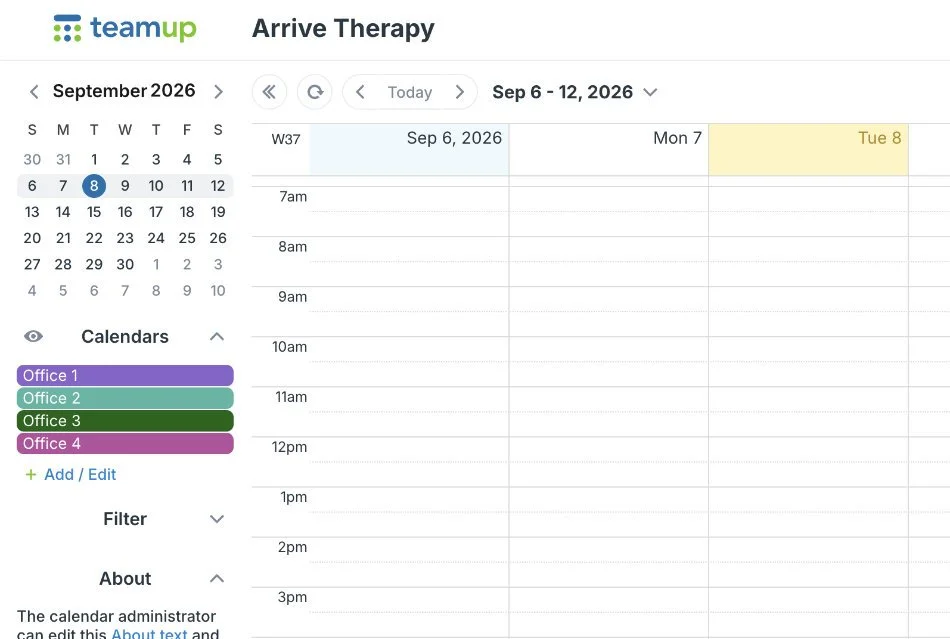
Click on the calendar where you'd like to create an event
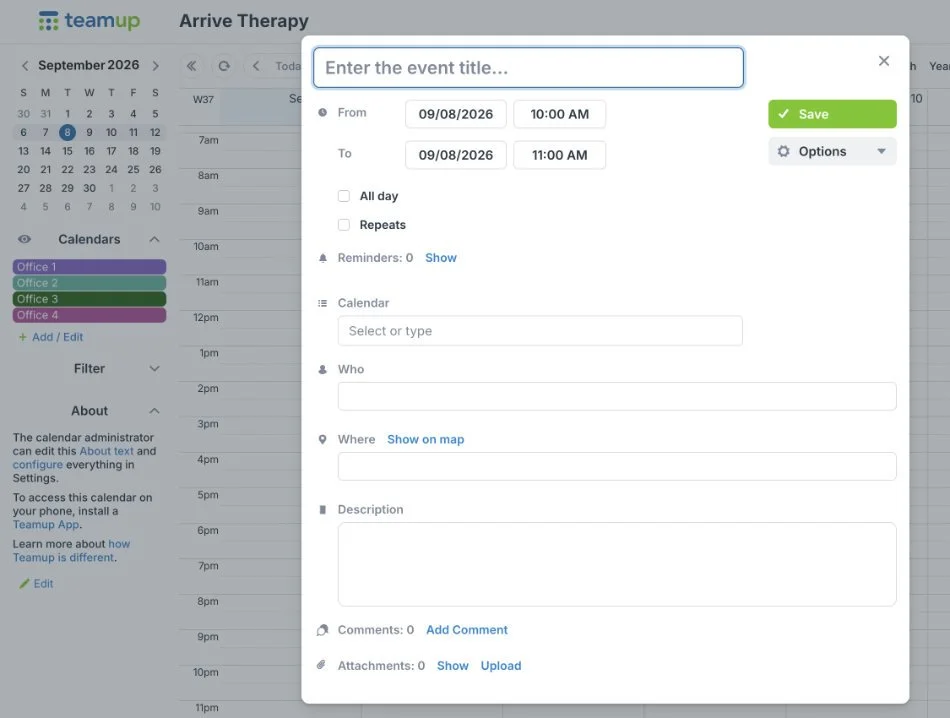
There's no separate "Add Event" button. Clicking the date and time you want on the calendar opens the event editor.
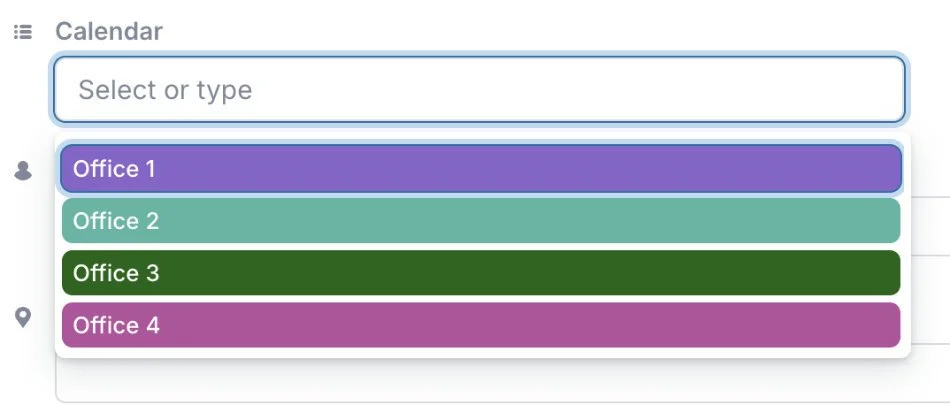
Pick the right office calendar
TeamUp lists each office as its own calendar. Choose the one for the room you want.
Name the event with your name and office number
Use the format "Your Name, Office 2" so anyone glancing at the calendar knows who's where.
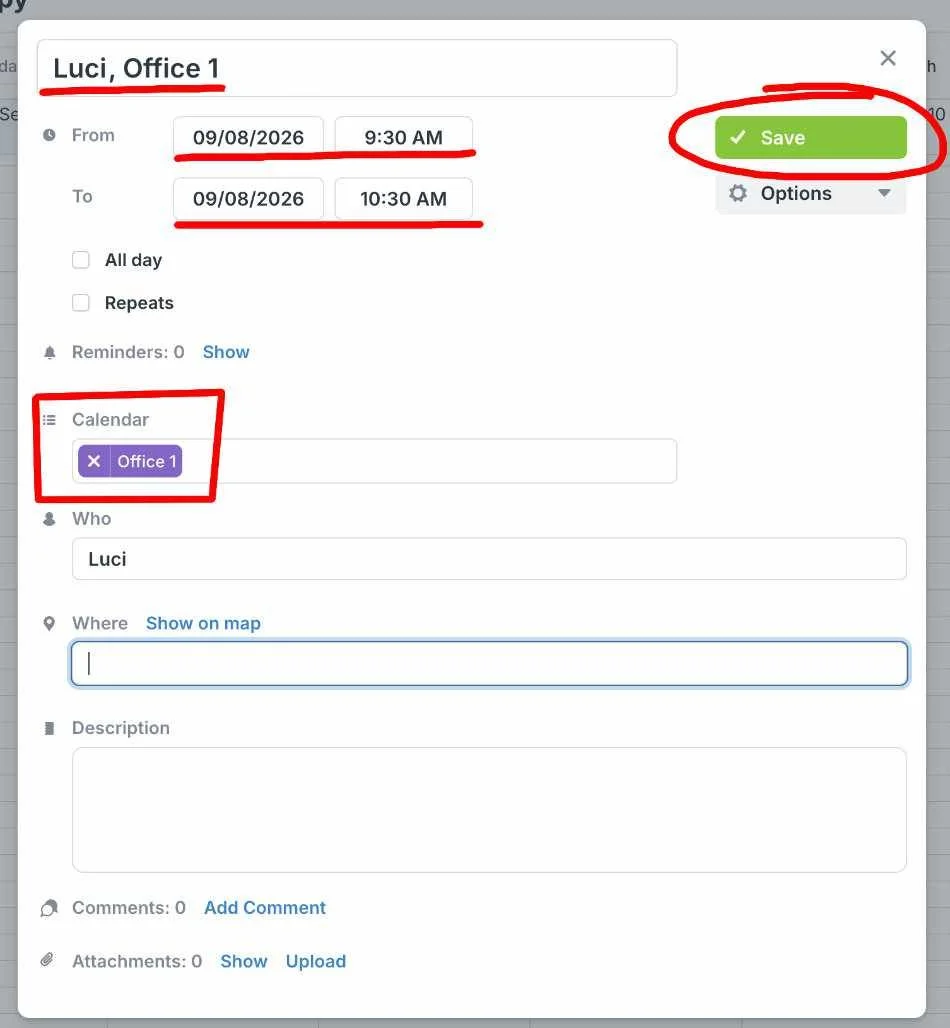
Choose times that match your sessions
Give up the room if the gap between appointments runs longer than an hour.
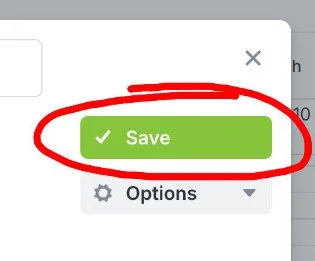
Save the event
It'll now show up on the shared office calendar for everyone to see.
Book only one to two weeks out
Anything further ahead makes it harder to keep the calendar accurate as schedules shift.
What happens after you book
Adair checks the calendar every Monday against JaneApp's in-person appointments. If a booked office slot doesn't match an actual in-person session, Adair will reach out and clear it. Keeping your TeamUp bookings current means you won't hear from Adair at all.